

Tips and Tricks for the WordPress interface- and updates on revisions.
How to get the most out of plug ins- themes and the Word Press blog engine.
Major WordPress version updates come a few times a year, and we now have version 4.8, named after Jazz Pianist Bill Evans. We call it the Widget edition.
For those of you who don’t know what widgets are, they started as the way to put stuff on the sidebar- the thing on the side of your blog, that’s there all the time…
wait? Does that sound a little foreign to you? It should. Because with the Theme Universe exploding, and responsive design (that resizes to any device size) widgets have become the way to put things anywhere on your site- from the front page to the sidebar, to the footer etc.
Other than stock widgets, many widgets are installed by Plugins, and some by themes and theme builders.
What used to require a bit of a hack, is now easy with these new widgets:
Image Widget
Adding an image to a widget is now a simple task that is achievable for any WordPress user without needing to know code. Simply insert your image right within the widget settings. Try adding something like a headshot or a photo of your latest weekend adventure — and see it appear automatically.
Video Widget
A welcome video is a great way to humanize the branding of your website. You can now add any video from the Media Library to a sidebar on your site with the new Video widget. Use this to showcase a welcome video to introduce visitors to your site or promote your latest and greatest content.
Audio Widget
Are you a podcaster, musician, or avid blogger? Adding a widget with your audio file has never been easier. Upload your audio file to the Media Library, go to the widget settings, select your file, and you’re ready for listeners. This would be a easy way to add a more personal welcome message, too!
Rich Text Widget
This feature deserves a parade down the center of town! Rich-text editing capabilities are now native for Text widgets. Add a widget anywhere and format away. Create lists, add emphasis, and quickly and easily insert links. Have fun with your newfound formatting powers, and watch what you can accomplish in a short amount of time.
Source: WordPress 4.8 “Evans”
And of course, with the customizer as the WordPress answer to SquareSpace, Wix and whatever other WYSIWG proprietary website solution- you can now do a drag and drop element in your site.
Just remember to always use a child theme to make your customizations. There are plugins that can help you set that up (right now, Child Theme Configurator seems to be the most popular)
Some of our favorite Widgets are:
Ad inserter:
Ad management plugin with many advertising features to automatically insert adverts. Perfect for all kinds of ads including AdSense and Amazon. Great also for contextual Native Shopping Ads and rotating banners. Ad Inserter provides many options to insert any Javascript, HTML, PHP or advert code anywhere on the page.
Source: Ad Inserter — WordPress Plugins
Popular posts:
WordPress Popular Posts is a highly customizable widget that displays the most popular posts on your blog.
Source: WordPress Popular Posts — WordPress Plugins
And the SiteOrigin widget installer – which bundles a bunch of useful tools:
SiteOrigin Widgets bundle:
- Google Maps Widget that’s going places.
- Button Widget that you’ll love to click.
- Image Widget that’ll let you add images everywhere.
- Call To Action Widget that’ll get your users performing the actions you want.
- Slider Widget that slides images and HTML5 videos.
- Price Table Widget that’ll help you sell more.
- Post Carousel Widget that displays your posts as a carousel.
- Features Widget that lets you display a set of site or service features.
- Video Widget to get your videos out there.
- Headline Widget to get you noticed.
- Social Links Widget to show you’re active.
Source: SiteOrigin Widgets Bundle — WordPress Plugins
The beauty of WordPress is that there is a complete selection of vetted tools on WordPress.org to extend and expand the capabilities of your site. Come to our next Websitetogy Seminar and learn about widgets, plugins, best posting practices and a whole bunch more.
While Drupal and Joomla continue to fork and swerve- WordPress continues to improve with refinements in the user experience- mainly, bringing more What You See Is What You Get WYSIWG features to the most used open source CMS going.
Almost 20% of the websites on the planet use WordPress as their backend- which is why we’ve been teaching our Websitetology Seminar since 2005.
New features of 3.9 – “Smith” are:
Improved visual editing: The updated visual editor has improved speed, accessibility, and mobile support. You can paste into the visual editor from your word processor without wasting time to clean up messy styling. Yeah, we’re talking about you, Microsoft Word
Edit images easily: With quicker access to crop and rotation tools, it’s now much easier to edit your images while editing posts. You can also scale images directly in the editor to find just the right fit.
Drag and drop your images: Uploading your images is easier than ever. Just grab them from your desktop and drop them in the editor.
Other features make it easier to actually see your galleries in the edit window, build audio and video playlists- and most importantly- cleaning up the horrendous whack-a-mole editing of sidebar widgets- with a true WYSIWYG editor.
All these improvements reinforce why WordPress is the 800lb gorilla in web content management. With every release, it gets EASIER to publish and manage your own site content.
“I keep getting emails from my new site, why?” is a frequent question from new site owners. The emails usually format [Your Site Name] Comment: “Post title”
This usually means either you’re popular, or spammers have found you. Depending on your settings, you could get these emails right away, daily, weekly, or not at all. To us here at Websitetology, these are an indication that your site is working, if they are real comments- and it’s your job to respond as soon as possible. Some people believe they should approve all comments before posting- which is a mistake in our book. Heated conversations, great support insight, good news, all could be sitting in the queue piling up, while you were asleep- or even in a movie. Our choice is to let them fly- moderate as soon as possible.
The emails could just be notifying you of comments posted- but some will ask you to moderate, and this is what this post is about.
Who ends up in moderation is all covered in the Settings > Discussion part of your dashboard. I don’t make people register, only requiring name and email address to be able to comment, so as not to make it too difficult to contribute. There are lots of other options, but covering all of them would make this a very long post.
They contain the following info:
New comment on your post: “Post title”
Author: with the name that that the commentator typed in. (IP. address)
E-mail: the email that the author typed in
URL: A site address that will show up as a link- if they have a site of their own.
Whois: a link to whois.arin.net which may tell you where the person was accessing your site.
Then the comment.
Underneath will be “You can see all comments on this post here:” with a link to your post and all the comments
Permalink: link- a link to the exact comment (which has a unique URL if you click on the time/date stamp of each comment if you are accessing it from the site’s front end)
Trash it: a link to take you to comment moderation to delete a comment.
Spam it: a link to take you to comment moderation to mark it as spam.
How to tell SPAM from real comments?
There are several things I look at right away:
- Does the name seem legit. For some reason spammers often use names that sound odd- or unique. This is the first clue.
- Is the IP from one you recognize- or is it a US based url? A lot of spam is from other countries or odd ISP’s You can always click on the Whois link to learn more
- Does the email address seem legit? If it’s some odd combination of letters and numbers, or something you wouldn’t tell someone for an email address it’s not. I make it mandatory to enter an email address in comments, but that doesn’t stop people from typing in [email protected] etc.
- If the URL is to an unrelated commercial site- for viagra, cigars etc. you can almost guarantee it’s spam unless your site is about E/D or smoking. Click to see where the link takes you and you’ll know what their intention is, or hover over the url- in the comment moderation page, and you can preview the site without risking a visit (see illustration below). Note, most people won’t put a link to a specific page or post- but just the URL ie. www.websitetolgy.com not www.websitetology.com/make-your-site-into-a-money-machine.
- Content is the key- if they are just saying how much they like your site- delete or spam. Comments are to add to the discussion or create additional value. Trust me, no one comments on your post and says “I’m so glad I found this site. I’m going to bookmark it and visit often” on a post from a few months ago. That’s a random spammer. Also, if the grammar is bad, or the comment has nothing to do with the post- spam it.
- For some odd reason, the WordPress comment moderation page shows all the spam full length instead of truncating it with a read more tag. When scrolling past some monster spam comments with hundreds of links, I wonder what the core team is doing. I don’t need to see the whole spam comment to recognize it- we hope to release a plugin to fix this.
There are all kinds of comment moderation tools as your site becomes more popular. Logging in with other social media ID’s can help considerably, but try to always have a way that people can login without having to use Twitter or Facebook. Social Login Plugin can help. There are also tools like Intense Debate and Disqus that can help thread and moderate comments via the community. Note, Intense Debate which was bough by Automattic (the people who make WordPress) has ceased development, and here is an interesting discussion about why not to use Disqus by a former user.
You’ll also get trackbacks- which can be SPAM. Trackbacks are notifications that post like comments on your site, but are just links to other sites that have linked to your post. Some people don’t allow comments, only trackbacks, so that they don’t have to be bothered with dealing with their community. Seth Godin who has millions of readers runs his site like this. It’s a very one-directional, arrogant way to run a site in the days of the social web, but, it’s up to you how you want to deal with your community. Trackback spam can be a big pain in the butt, but usually it means you are doing something right- or they wouldn’t value a link from your site so much.
A good way to determine if a trackback is spam- without going to the site, is using the preview in the comments moderation page. Hover over the link- and a preview will show you what your readers would see if they clicked on their URL.
Here’s a screenshot:
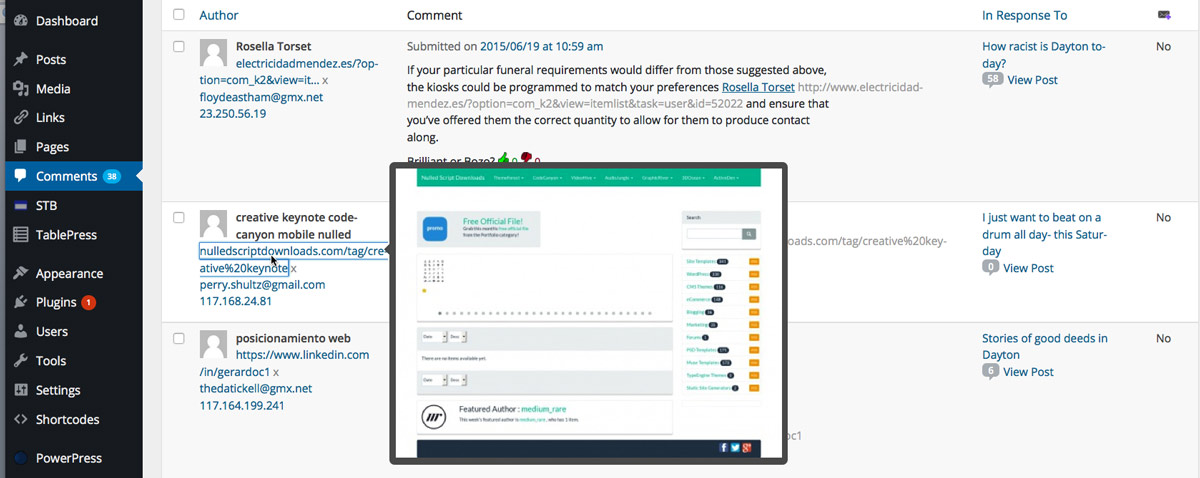
By hovering over the link, you can see the site that the spam comment author is linking to.
But the best part of moderating comments is…
Responding to comments on the site. Have the conversation with the person who took the time to read and comment on your site.
Everyone who comments is starting a conversation with you, engage and enchant and you’ll be well on your way to becoming a trusted expert in your field.
Helpful links on the WordPress interface for comment moderation:
Found this article explaining the WordPress moderation interface: Learning to Love Comment Moderation by Heather R. on the WordPress.com site. It explains the interface, although the action menu only appears on mouse over in current versions- an odd UI that isn’t entirely intuitive.
A Guide to WordPress Discussion Settings by Craig Grella on WPMU site fully explains the discussion settings in the Dashboard>Settings>Discussion
and there is a whole section on the WordPress Codex: Comments in WordPress
And here is a video from WordPress to show you the quick view of recent comments on the Dashboard and how to moderate from there: