

 Sadly, this post needs to be written. Mostly, because people have come to the conclusion that “Likes” and “Shares” and “Clicks” and “Views” and all those other “metrics” of success are what is easy to measure.
There are only two things that matter: you can solve a customers problem, and they can find you quickly.
If you can solve their problem and they can find you- you should be able to make money and continue your business venture. Which brings us back to the question “What business are you in?” which is another question that most businesses should know- but many don’t.
On the internet you are always a click away from your competition- and at the mercy of Google for generating you leads. That’s why the “You gotta be on the first page of Google” is so important- because, you, me and everybody else usually picks their solution off the first page of Google.
Understanding how Google works is really critical, and it’s one of the most important parts of our Websitetology Seminar. Anyone who tells you that they can get you organically (not paying for an ad) to the front page of Google for X dollars per month is selling you crack. You’ll get addicted- and while they may get you there for 10 search terms, doing your site right should get you hundreds of search terms. At least if you use WordPress as your Content Management System and fully understand what kind of content and how to post properly.
When it comes to content- think about what you search for. Usually it’s to solve a problem- be it the “best price for business card printing in Dayton Ohio” which should take you to The Next Wave Printing, where 500 4/c 2/s 16pt business cards can be had for $13.50 plus tax from your press ready files. On my search, we come up 7th- on the first page. Which is great, but, the likelihood of us making a sale is kinda slim with all those other printers ahead of us.
As usual, the cobblers kids need new shoes, and we should optimize better, but here’s the thing- we’re not primarily in the printing business. We’re an ad agency, that believes that much of the printing has become a commodity- and we’re using low printing prices as a way to attract clients who need a great full service ad agency in Dayton Ohio.
The problem is, we just helped optimize the printing site for one term – “Best price for business card printing in Dayton Ohio” and you may have searched for “Cheap business card printing in Dayton Ohio.” Where we come in 2nd. As you can guess- there are a ton of search terms to optimize for – and all have different results. So, optimize away, but the real key these days is referrals, and recommendations.
And if you didn’t catch it, we’re seamlessly and shamelessly posting referral links about another of our business sites in this post, with the hope you click on over. Building “link juice” or “google cred” is a part of the formula. Who links to you, how much traffic you get, how much traffic they get, is all analyzed as part of the algorithm that makes Google work. And remember, everyone gets different results from Google based on the personalized search history you’ve built.
People often will ask their friends via Linkedin or Facebook- who has the best prices on business card printing in Dayton Ohio- and they may or may not know anything about your business and say we used “StupidCheapBusinessCards.com” for ours and they were fine. Nevermind Stupid Cheap prints on 100lb cover, charges $14,95 plus shipping.
This is where companies start making mistakes- going into social networks and telling everyone “We have the best prices on Business Cards in Dayton Ohio” when the discussion is about a tax levy. You become noise, irritating, obnoxious, and sometimes- blocked.
Making sure every business that uses you writes a review on Google Local, Facebook, LinkedIn or Yelp, Foursquare, Trip Advisor can help- some more than others, but, usually, the key is for your customers to spread the word for you. Making it easy to share the great value and service you provided is usually worth a lot more than just being at the top of Google.
Which brings us back to what is the best content for your site? It’s useful posts that solve the customers problem- sometimes before they even realize they have one. Do you provide all your service manuals, instructions, ads, warranty information, repair and return policies, hours, locations, and anything else they may need to know in order to do business with you.
Do you offer tutorials, how to’s and step-by-step content? You should.
We looked at a site today for a local diner to find the menu to order carryout lunch. The site greeted us “Coming this spring” (it’s fall) and the “Menu” didn’t have prices. Not good. There were no reviews (probably a good thing- we thought the bread was mediocre, the chips run of the mill and the sandwiches were soggy). We hadn’t looked at reviews first, but, if any of our friends ask about this new place, we probably won’t suggest it. We also believe it’s much better to have people review you on your own site- instead of on one of those other sites, because you can address it easily (note- most of the review sites mentioned provide tools you can use to monitor and respond to reviews- make sure you claim your business.).
If you still have questions about what is good content- it solves your customers problem, and it’s something that helps them find you. If you want a customized recommendation list for content generation, we’re here to help, or you can take the Websitetology Seminar and learn the secrets of best posting policies and how all this fits together.
 Old adage, well, not really that old… “Half the people read, half the people, watch TV (video) ~unkown.
“Social Video” as defined by Cameron Uganec from Hootsuite is: “digital video that is designed to be seen and shared through social networks.” And he offers these three pointers to expand on that definition:
- “Social videos need to be optimized for different channels.” This is because a video that may work on YouTube may need to be drastically reduced in length to be successful on Facebook or Instagram. And what works on those platforms might not work on others like Twitter or Snapchat. For Facebook you need to upload videos natively, instead of linking out, so you have a much higher chance of your video being seen by your community and/or fans.
- “If it’s prerecorded, social videos need to be shareable.” You can’t only think of the channel, you also need to think about shareability. How does your content connect with your audience, what traditional conventions for how it’s produced have you used, does your social video compel your audience to want to share the video with their friends or colleagues?
- “Live social videos need to be about authenticity and real-time engagement.” In today’s age of brand relationships you have to have a real connection with your audience, you have to really care about and address what need it is that they are trying to solve. No longer do consumers what the hard sell about your product or service, they know what they are looking for and want to know that you are a business that they can trust to solve that need in a honest way.
Source: A Guide to Social Video, and Where it Fits in Your Marketing Plan
Here are 5 ways that you can leverage social video so that YOUR BUSINESS can make money.
- Because social networks like Facebook are now favoring video in their algorithms, you have a unique ability to connect with viewers. Sakal News restructured their content strategy to reach a wider audience by sharing interesting, relevant, and authentic content. They increased their video post frequency from 3 to 60 videos per week, and reaped the rewards with their views jumping from 333K in march to 10.5M video views in June. This equated to a 4x growth in reach since February. Be careful though, “while the Facebook algorithm is a definite positive for video, it will punish businesses and video creators who produce bad, lazy, or unoptimized video…… Don’t think of this as a punishment as much as an incentive to only share high quality content- something you should be striving to do anyways”.
- Social videos can deliver impressive ROI, with “72 percent of businesses who use video saying that it has increased website conversion rates”. The important aspect here is that you have to SET GOALS and TRACK the success of your videos using analytics. It is only through tracking that you will definitively learn how your audience behaves, and this in turn allows you to refine and redefine your social video strategy.
- Use social video to lift the behind the scenes veil of your business or company. In doing so you humanize your business, and it can also be a very effective way to attract not only new business but new talent as well!
- Leverage the interactivity of social videos for lead generation. Make sure you include an effective call-to-action to clearly tell viewers what you want them to do next. For Facebook you can create promotions that have a CTA (call-to-action) button below the video. YouTube allows you several different options for linking out from videos including overlays on the video itself, non-intrusive and timed callout bubbles, and including links in the description.
- “How-to videos” are amongst the most popular search queries on YouTube. Don’t assume that your customers intuitively know how to use your product. If they can see a video that demonstrates how-to use it in general or a feature, then you are providing value to your customers, solving their need and showing that you care enough to help. How-To video’s can also be used for brand awareness by offering help in a related topic.
Why do you have to optimize your video for different channels?
This is an embedded YouTube video The Next Wave made – you can toggle captions on/off and can see that it is easily sharable:
However, if we just stick it in Facebook- it won’t have captions, it won’t autoplay in the scroll, and although you can share FB videos outside of Facebook- they don’t always allow people without Facebook accounts to see them. Facebook does this on purpose- to make sure you stay on their site.
4 Quick Tips:
- Make sure that your video has captions so that people can watch at work, without getting caught.
- If you place your brand and message in the first 5-10 seconds of your video, people are 3X more likely to engage with it.
- Make sure that you know which platform your target audience is active on. Do this by initiating small tests on all the platforms and using tracking see which one/s drive the best results.
- Make a point to mention the call to action you want your viewers to take inside your actual video. (“Subscribe to my channel”, “click the link below to find out more”, “Send me your email”, etc.)
Since half the people read and half watch, are you creating half your content as video? Remember, Youtube is the second most popular search engine after Google.
Talk to us at The Next Wave for a systematic, customized and successful strategy for your social video needs. Do you know we also offer printing at fantastic rates? Talk to us today!
Interested in learning more about the internet and how to use WordPress to successfully promote your business on the web? Check out our live Websitetology 1 day class, where we help you become a master of the internet!
We’ve picked up a new toy at the office recently: the LG 360 Cam. It allows you to take those cool 360 degree photos you can swivel around with using your phone’s gyroscope or a pair of “VR” goggles you stick your phone into.
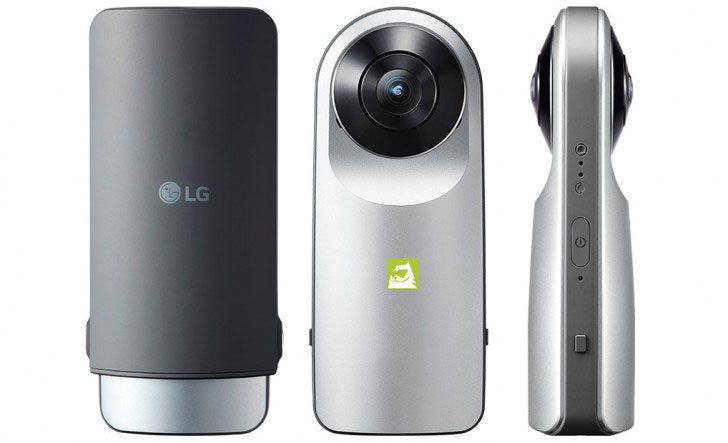
This review on CNET covers just about everything you need to know:
The LG 360 Cam is an easy-to-use and comparatively inexpensive 360-degree point-and-shoot camera. It’s compact and its clever case doubles as a handgrip. Its mobile app lets you preview and review your shots as well as control the camera. You can shoot with just one lens at a time for non-360-degree images.
For most people, the only way to take these kinds of photos is to whip out your phone, install an app, and slowly stitch together multiple photos into one big one (with a little algorithm magic) in the hopes it all comes together. Not so with this LG, which features a stupidly simple solution to the issue—it stuck two very wiiiiiiiiiiide cameras on each side, put a button on the front, and called it a day. This no frills approach is extremely successful, there are few things to screw up—you shoot once (or twice for safety!) and you’re done. You can control the camera with an app on your phone, so you can leave the room before you shoot your photo.
We think the best part about this is the price. On a good day you can pick one of these up for less than $100. Photography is a notoriously expensive hobby, but this isn’t an example of that.
So why are we talking about this on a site about the web?
Well, there’s a reason! We were approached by someone recently to shoot photos for their house which they intend to sell on their own. It seemed like a great opportunity to break out the new camera and embed some 360 photos in the ad.
Combine this with some Google Cardboard or one of those plastic headsets, and you almost don’t even need an open house. Almost.
Disclaimer: No one paid us to say any of this, we just enjoy geeking out about cameras every once in a while. The links in the article are affiliated, however. So if you decide to buy, you’d be doing us a solid.